Network scanner: see every device on your Wi-Fi and LAN
Your router knows what is connected to your network. It just refuses to say so in a useful way: a list of MAC addresses and half-missing names, buried four menus deep. A network scanner asks the network directly and gives you the answer in one screen.
What a scan shows
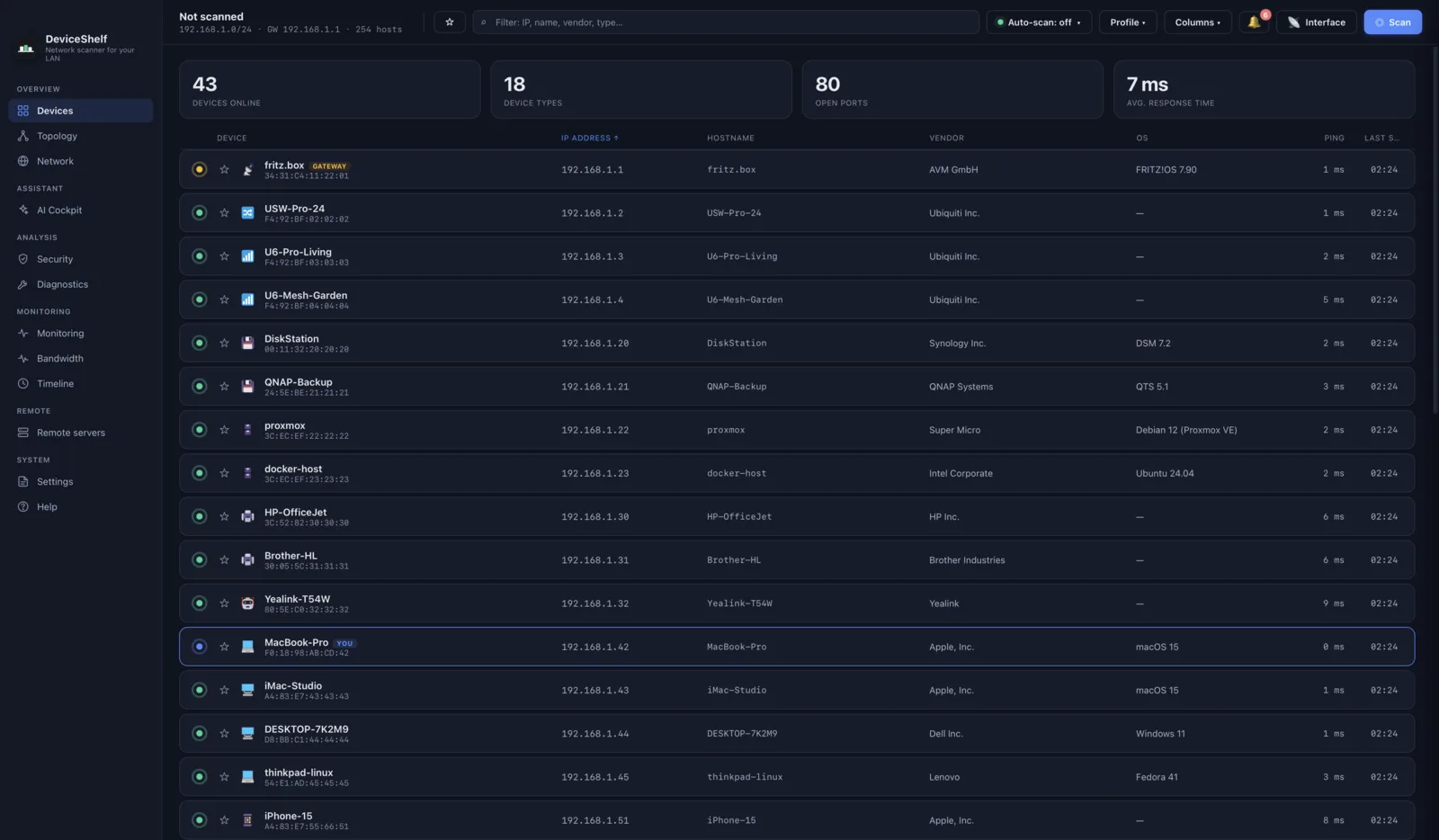
A network scanner probes every address on the subnet you are connected to and reports which ones answer. For each live device you get, at minimum, an IP address, a MAC address and the hardware vendor derived from it. Better tools add the hostname, the services the device advertises, its open ports, and a judgement about what the thing actually is: a printer, a camera, a NAS, a thermostat, someone's phone.
That last step is what separates the tools worth paying for from the rest. A bare list of forty vendor names is not an answer; it is homework. The question people bring to a scanner is almost never "which addresses are in use" but "what is all this stuff, and should it be here".
How a network scanner works
The sweep itself is simple, and it is the same in every tool. The scanner works out your subnet, then sends a small probe to each address in it: an ARP request on the local segment, a ping where ARP does not reach, sometimes a knock on a handful of well-known TCP ports for devices that ignore both. Anything that answers is a live device.
Identification is where the tools diverge. The first signal is the MAC address, whose first half names the manufacturer via the public IEEE registry. After that come the discovery protocols devices use to announce themselves: mDNS and Bonjour (how your laptop finds the printer), SSDP and UPnP (how apps find the TV), SNMP on managed hardware, and the banners that web interfaces and other services return when asked. A scanner that reads all of these, and knows what the combinations mean, can tell a robot vacuum from a doorbell. One that reads none of them prints "Espressif" and leaves the rest to you.
Two practical limits are worth knowing. A scanner sees the network it is connected to: from the sofa you scan your home LAN, and the office network is not reachable from there. And devices that are asleep or firewalled may ignore every probe; the reliable way to catch those is to read the router's own client table, which some scanners, ours included, can do.
What people use one for
Finding out what an unknown device is
The classic trigger: a name you do not recognise in the router list. Most of the time it is one of your own phones under a randomised MAC address, or a smart plug hiding behind its chipset vendor. Occasionally it is not, and that is worth knowing. We wrote a step-by-step guide to tracking down an unknown device.
If what you want is simply the full list, our walkthrough on seeing every device on your network and finding its IP address puts the router list, the built-in tools and a scanner side by side.
Keeping an inventory
A household easily runs thirty or forty connected devices now; a small office more. Most have no screen, so the network is the only place they are visible at all. A scan with names and types, kept up to date, is the inventory nobody wants to maintain by hand.
Checking open ports
Every open port is a door. Some are supposed to be open; a database port on a camera is not. A scanner with a port overview shows you what your devices expose to the rest of the network, and our open ports guide explains what the numbers mean.
Being told when something new joins
A single scan is a snapshot. The lasting value is a baseline: knowing what normal looks like, so the one unexpected arrival stands out. Tools that keep watching can alert you when a new device joins your Wi-Fi instead of relying on you to look.
Network scanner, IP scanner, Wi-Fi analyser
The names in this category are a mess, so here is the untangling. Network scanner, IP scanner, LAN scanner and Wi-Fi scanner all mean the same tool: one that probes a range of addresses and lists the devices that answer. Which of these names a product picks tells you nothing about actual capability.
The distinction that matters is the Wi-Fi analyser. That is a different instrument at a different layer: it measures channels, signal strength and interference, and answers "why is the wireless slow in the back bedroom". It will not tell you what is on your network. If your question is "what is connected", every name in the first group fits and an analyser does not.
Beyond both sit the heavyweight port scanners, Nmap above all: free, terminal-driven, and unmatched for probing depth on a single target. For choosing between the mainstream tools, our comparison page puts the popular scanners side by side, with separate pages on Angry IP Scanner, Advanced IP Scanner, Fing and LanScan.
DeviceShelf, in short
DeviceShelf is our network scanner, and this is its pitch in one paragraph. One click scans your Wi-Fi or LAN and returns every device with name, vendor, open ports and an actual identification, built from mDNS, SSDP, SNMP, HTTP banners and an offline fingerprint set rather than the vendor prefix alone. It reads the client list of seventeen router brands to catch devices that sleep through a sweep. It keeps watching afterwards: new devices raise an alert, history records what was connected when, a security report flags exposed ports, and a bandwidth view shows who is using the line.
Everything stays on your machine. No account, no cloud, no telemetry; the optional AI identification and online lookups are off until you turn them on. One purchase covers macOS, Windows and Linux, without a subscription.
Try DeviceShelf free for 7 days Compare it with other scanners
Pick your platform
- Mac: macOS ships without a scanner, and the field of native tools has its own quirks. We compared nine network scanners for the Mac.
- Windows: the free-tool tradition is oldest here, and the trade-offs are real. Our guide to network scanning on Windows walks through them.
- Linux: the command line can do all of it, and a GUI is still nice. See network scanning on Linux and the DeviceShelf Linux page.
- Always on: the server edition runs headless on a NAS, a Raspberry Pi or in Docker and monitors the network around the clock.
- Phone: iOS and Android restrict what an app may see of the local network, so mobile scanners are more limited by design. The DeviceShelf mobile apps work within those limits and read the router list to fill the gaps.
Questions people actually ask
What is a network scanner?
A program that sweeps the network you are connected to and lists every device it finds: IP address, hostname, vendor and, in the better tools, what each device actually is and which ports it has open.
What is the difference between a network scanner and an IP scanner?
In practice, nothing. The two names, along with LAN scanner and Wi-Fi scanner, describe the same category. The term to keep separate is Wi-Fi analyser, which measures radio quality rather than listing devices.
Is it legal to scan my own network?
Scanning a network you own or administer is ordinary practice and is what these tools are for. Scanning networks that belong to other people without permission is a different matter and may well be illegal where you live. Stay on your own LAN.
Why does a scan show devices I do not recognise?
Usually because phones and laptops randomise their hardware address per network by default, so your own devices appear as strangers. The rest are typically smart-home gear, a TV or a printer behind an unhelpful vendor name. Genuine intruders are rare but not unheard of, which is the case for a tool that identifies devices rather than just listing them.
Will a scanner slow down my network?
Not noticeably. A sweep of a home subnet is a few thousand small packets over a few seconds. Aggressive port scanning across a large range is heavier, and some older IoT devices dislike being probed, which is why gentler scan profiles exist.
Do I need to pay for a network scanner?
Not for a one-off list of addresses. Paying makes sense when you need to know what each device is, want an alert when something new appears, or need a record of what was connected last week. Our comparison covers both kinds.